
 diCleaner · How-To
Find what’s filling your Mac with diCleaner
When storage runs low, start with a folder you know. A large recording or old installer can explain more than a long list of tiny files.
Follow the biggest folders
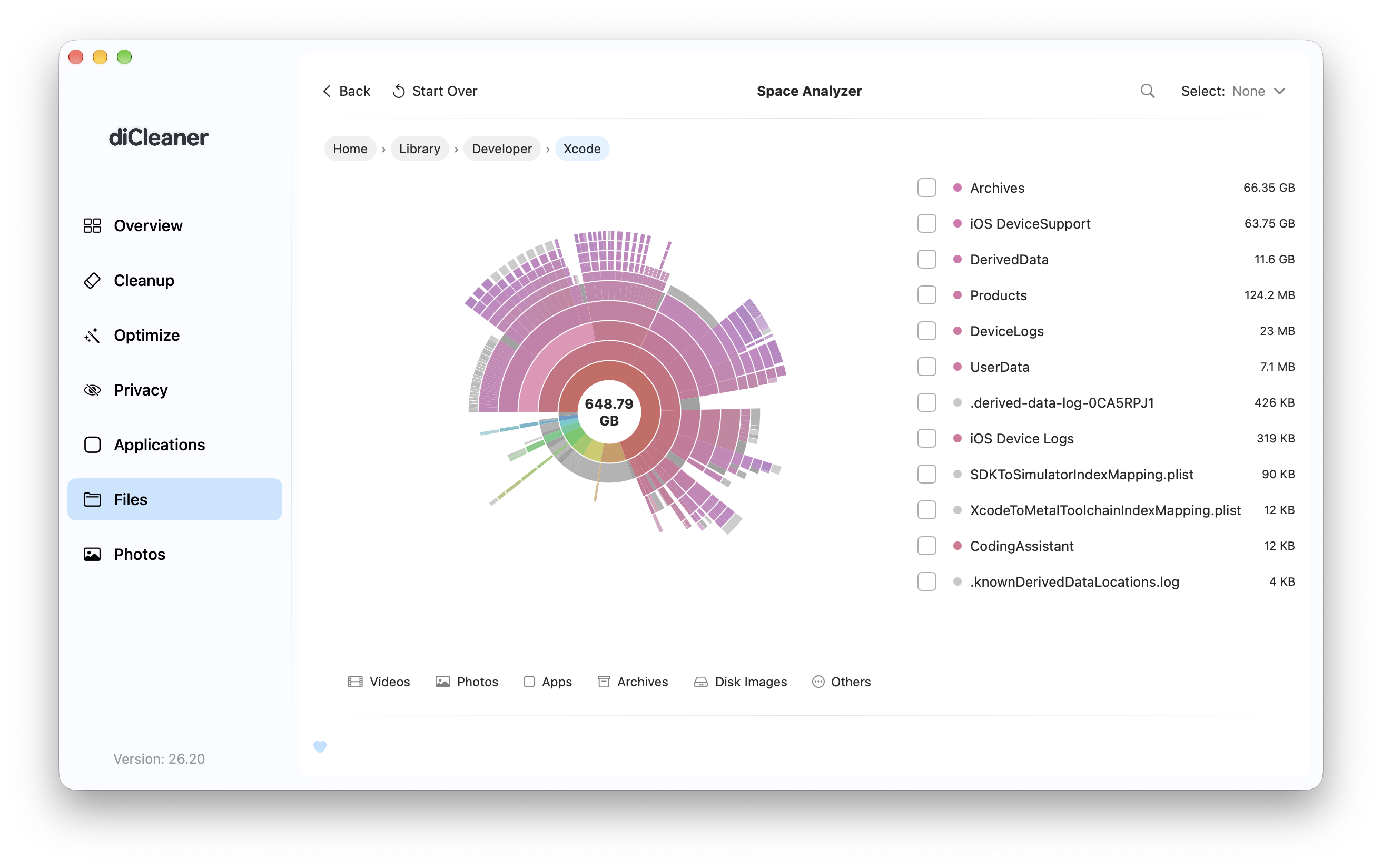
Open Files → Space Analyzer, choose Downloads, grant access if prompted, and scan. Follow the largest branches until you recognize individual files. Scanning leaves your files intact. Check the full path in Finder and make sure active projects don’t depend on the file.
Use the large-file list when you know what to look for
Open Files → Large and Old File Finder and scan the same folder. If the list is crowded, raise the minimum size in Settings → Scan → Large and Old Files, for example to 500 MB.
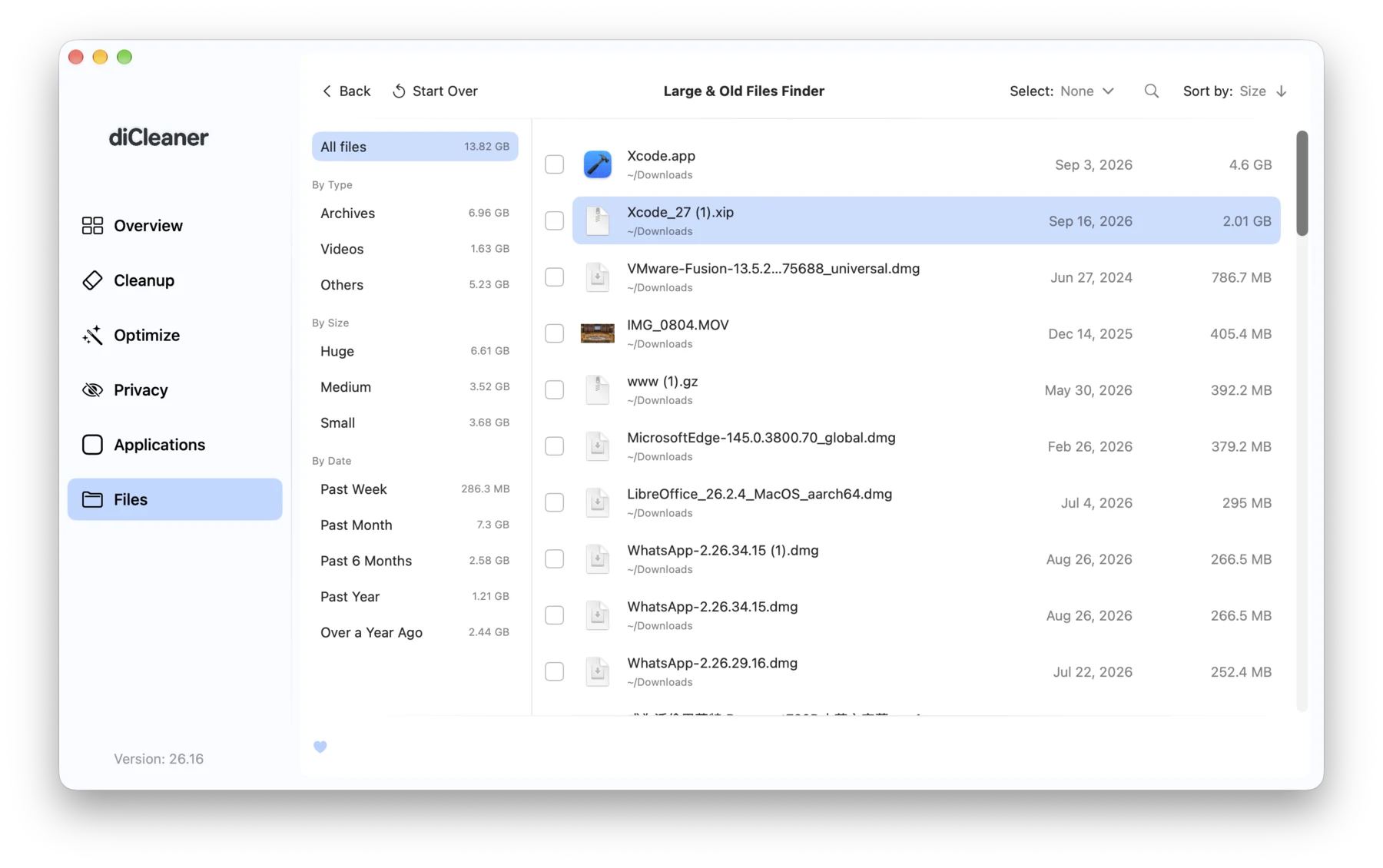
Start with installers you can download again and exports you’ve backed up. Manage photo libraries, virtual machines and editing assets in the apps that own them. Check your projects before emptying the Trash. Protected folders, cloud placeholders and APFS snapshots can account for differences from System Settings.